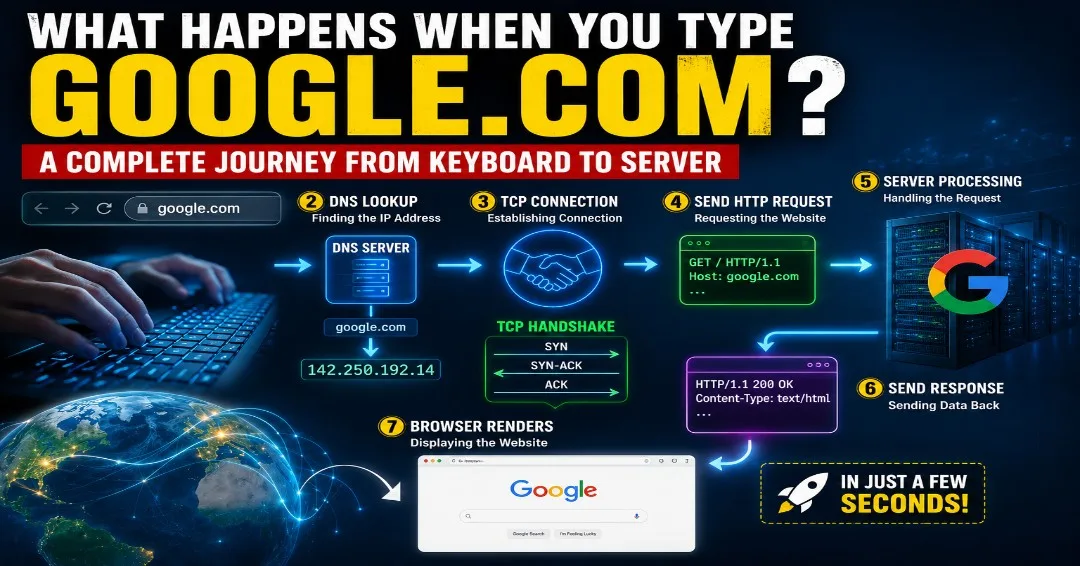
What Happens When You Type google.com in Your Browser? A Complete Journey from Keyboard to Server
Join Our WhatsApp Channel for Latest UpdatesWhat Happens When You Type google.com in Your Browser? A Complete Journey from Keyboard to Server
Ever wondered what really happens when you type google.com into your browser and press Enter? Within just a few milliseconds, thousands of complex operations take place behind the scenes to bring Google's homepage to your screen.
In this article, we'll explore the fascinating journey of a web request—from your keyboard all the way to Google's servers and back.
Table of Contents
- Browser Checks the Cache
- DNS Lookup: Finding Google's Address
- Establishing a Connection
- Secure Communication with HTTPS
- Sending the HTTP Request
- Server Processes the Request
- Browser Renders the Page
- Final Thoughts
- Frequently Asked Questions (FAQs)
1. Browser Checks the Cache
The moment you type google.com and press Enter, your browser first checks whether it already has the website's information stored locally.
Modern browsers maintain several types of caches:
- Browser Cache – Stores previously visited web pages and files.
- DNS Cache – Stores recently resolved domain names.
- Operating System Cache – Keeps network-related information.
If the required resources are already cached, the browser can load the page much faster without contacting external servers.
Did You Know?
Caching significantly reduces page load time and saves bandwidth.
2. DNS Lookup: Finding Google's Address
Computers do not understand domain names like google.com. Instead, they communicate using IP addresses.
Therefore, the browser needs to determine Google's IP address.
This process is called DNS (Domain Name System) Lookup.
Example
google.com → 142.250.xxx.xxx
The DNS system acts like the Internet's phonebook.
The browser checks:
- Browser DNS Cache
- Operating System DNS Cache
- Router Cache
- ISP DNS Server
- Recursive DNS Servers
Once the correct IP address is found, the browser can contact Google's servers.
3. Establishing a Connection
Now that the browser knows Google's IP address, it needs to establish a reliable connection.
Most websites use the TCP (Transmission Control Protocol).
TCP establishes communication using a process known as the:
Three-Way Handshake
Step 1: SYN
The client sends a SYN packet to the server.
Step 2: SYN-ACK
The server responds with a SYN-ACK packet.
Step 3: ACK
The client sends an ACK packet.
After this handshake, a reliable connection is established.
Client -------- SYN --------> Server
Client <----- SYN-ACK ------- Server
Client -------- ACK --------> Server
4. Secure Communication with HTTPS
Today, almost every website uses HTTPS to secure communication.
Before exchanging data, the browser and server perform a TLS Handshake.
During this process:
- The server presents its SSL certificate.
- The browser verifies the certificate.
- Encryption keys are exchanged.
- A secure communication channel is established.
This ensures:
✔ Data privacy
✔ Authentication
✔ Protection against attackers
Without HTTPS, sensitive information could be intercepted.
5. Sending the HTTP Request
Once a secure connection is established, the browser sends an HTTP Request.
A simplified request looks like this:
GET / HTTP/1.1
Host: google.com
User-Agent: Chrome
Accept: text/html
The request tells Google's server:
- Which page is requested.
- Which browser is being used.
- What content formats are accepted.
6. Server Processes the Request
Google's web servers receive the request and process it.
The server may:
- Check authentication.
- Query databases.
- Generate dynamic content.
- Retrieve images, CSS, and JavaScript files.
After processing, the server sends back an HTTP Response.
Example:
HTTP/1.1 200 OK
Content-Type: text/html
The response usually contains:
- HTML
- CSS
- JavaScript
- Images
- Fonts
7. Browser Renders the Web Page
After receiving the response, the browser starts rendering the page.
Rendering Process
1. Parse HTML
The browser converts HTML into a structure called the DOM (Document Object Model).
2. Parse CSS
CSS rules are converted into the CSSOM (CSS Object Model).
3. Execute JavaScript
JavaScript is downloaded and executed.
4. Create Render Tree
The browser combines DOM and CSSOM to build a Render Tree.
5. Paint Pixels on the Screen
Finally, the browser paints the page on your display.
Within milliseconds, Google's homepage appears.
Complete Flow Summary
User Types google.com
          ↓
Browser Cache Check
          ↓
DNS Lookup
          ↓
TCP Handshake
          ↓
TLS Handshake
          ↓
HTTP Request Sent
          ↓
Server Processing
          ↓
HTTP Response Received
          ↓
Browser Rendering
          ↓
Web Page Displayed
Final Thoughts
Typing google.com into a browser may seem like a simple action, but behind the scenes, an incredibly sophisticated series of operations takes place.
From DNS lookups and TCP handshakes to HTTPS encryption and browser rendering, the modern web relies on numerous technologies working together seamlessly.
Understanding this process not only helps developers build better applications but also provides insight into how the Internet truly works.
Frequently Asked Questions (FAQs)
Q1. What is DNS?
DNS (Domain Name System) translates domain names into IP addresses.
Q2. Why is HTTPS important?
HTTPS encrypts communication between browsers and servers, ensuring security and privacy.
Q3. What is a TCP Handshake?
A TCP handshake is the process used to establish a reliable connection between a client and a server.
Q4. What is browser caching?
Browser caching stores website resources locally to improve loading speed.
Q5. How long does this entire process take?
Typically, the complete process takes only a few hundred milliseconds.